
Amazon Advertising Metrics: Every Formula and the Decision It Drives
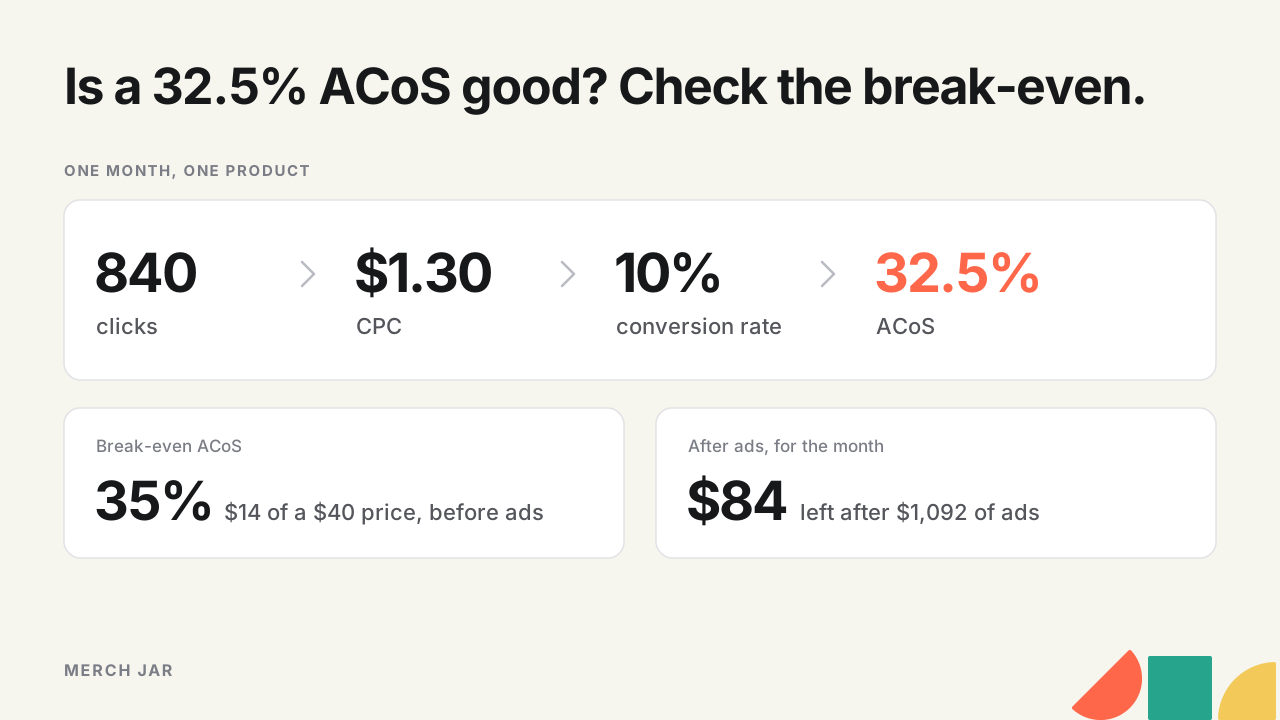
Amazon advertising metrics are a handful of counts Amazon records for every campaign (impressions, clicks, spend, orders and sales) and the ratios built from them, which are CTR, CPC, conversion rate, ACoS and ROAS. TACoS adds your total sales from Seller Central. The ratios are what you decide with, but none of them says on its own whether an ad made money. For that you compare ACoS or ROAS with your break-even, which comes from your margin. Below is each metric with Amazon’s definition, the formula and the decision it drives, worked through one example campaign, plus the free calculator that does the math.
The metrics at a glance
| Metric | Formula | What it tells you |
|---|---|---|
| Impressions | Count | Whether the ad gets shown |
| Clicks | Count | How much traffic you paid for |
| CTR | Clicks ÷ impressions × 100 | Whether shoppers want what the ad shows |
| Spend (Cost) | What the clicks cost in total | Where the money went |
| CPC | Spend ÷ clicks | What a click costs on average |
| Orders (Purchases) and sales | Count and value | What the ads sold |
| Conversion rate (purchase rate) | Orders ÷ clicks × 100 | How many clicks it takes to sell |
| ACoS | Spend ÷ attributed sales × 100 | Share of each ad sale paid out in ads |
| ROAS | Attributed sales ÷ spend | Ad sales for every $1 of ads |
| Break-even ACoS | Profit per unit before ads ÷ price × 100 | Highest ACoS that still makes money |
| Break-even ROAS | Price ÷ profit per unit before ads | Lowest ROAS that still makes money |
| TACoS | Spend ÷ total sales × 100 | How much the whole business leans on ads |
| Target CPC | Conversion rate × order value × target ACoS | Most a click can cost at your target |
| Top-of-search impression share | Top-of-search impressions won ÷ eligible | How much of the top of the page you get |
One example campaign
Every calculation below uses the same made-up month for one product. It sells for $40, costs $12 to make and pays $14 in Amazon fees, which leaves $14 a unit before ads.
| Line | One month |
|---|---|
| Impressions | 120,000 |
| Clicks | 840 |
| Ad spend | $1,092 |
| Orders (one unit each) | 84 |
| Attributed sales | $3,360 |
| Total sales for the product, ads and organic | $8,400 |
Impressions, clicks and CTR
Impressions
An impression is one showing of your ad. Amazon’s report definitions count the times the ad was displayed and filter out invalid traffic, so bots don’t pad the number.
Impressions tell you whether the ad is getting shown at all. A target with almost none usually needs a higher bid first. If weeks of small raises still don’t get it shown, the bid probably isn’t the problem, and starting that target over in a new campaign or ad group is the next thing to try.
Clicks
Clicks are the times a shopper clicked the ad, with invalid clicks filtered out the same way. Sponsored Products charges per click, so clicks are the traffic you’re paying for. The example bought 840 of them.
CTR
CTR = clicks ÷ impressions × 100
840 ÷ 120,000 × 100 = 0.7%
Click-through rate says whether the shoppers who see the ad want what it shows. When a target gets plenty of impressions and few clicks, check relevance first (is the search really for your product?), then how your main image, price and review count look next to the ads around you. There’s no margin to judge CTR against, so compare each target with its own history and with your other targets for the same product.
Spend and CPC
Spend
Amazon’s reports now label spend as Cost, the amount spent running the campaign. On Sponsored Products it adds up what every click cost.
Sort by spend before you judge any ratio. A 90% ACoS on $12 of spend can wait until next week, but on $1,200 it’s the first thing you look at.
CPC
CPC = ad spend ÷ clicks
$1,092 ÷ 840 = $1.30
That’s the average you paid per click over the date range. Whether $1.30 is too much depends on what a click brings in, which target CPC works out further down. The CPC calculator does both with your own numbers.
Orders, sales and conversion rate
Orders and sales
Newer reports call orders Purchases. One purchase can include several units, and sales is the total value of the purchases credited to your ads. In the example, 84 orders came to $3,360.
For a seller on Sponsored Products, Amazon’s attribution rules credit a purchase to the last ad click within 7 days, and the purchase can be any product you sell, including ones that weren’t in the ad. The advertised product report splits the two, with Sales (promoted) for the product in the ad and Sales (halo) for everything else bought after the click.
Conversion rate
Conversion rate = orders ÷ clicks × 100
84 ÷ 840 × 100 = 10%
That’s one order every 10 clicks. In the reports it’s called purchase rate, ad-attributed purchases over ad-attributed clicks, so it only covers clicks on your ads. Don’t expect it to match the conversion figures in Seller Central’s Business Reports. The conversion rate calculator works out both kinds, and our conversion rate guide covers what to check when it drops.
Conversion rate times order value is what a click is worth, so a change here changes what a keyword can afford to bid. When ACoS climbs and CPC hasn’t moved, look here before you touch the bid.
ACoS and ROAS
ACoS
ACoS = ad spend ÷ attributed sales × 100
$1,092 ÷ $3,360 × 100 = 32.5%
Advertising cost of sales is the share of each ad-sales dollar that went back out as ad spend. Amazon’s ACOS guide uses the same formula. In the example, 32.5 cents of every $1 of ad sales paid for the ads.
On its own, 32.5% doesn’t tell you whether the campaign made money, which is what the break-even section below is for. What does ACoS mean covers which sales count and what moves the number, and the ACoS calculator works it out from spend and sales.
ROAS
ROAS = attributed sales ÷ ad spend
$3,360 ÷ $1,092 = 3.08
Return on ad spend is the same two numbers the other way up, ad sales for every $1 of ads. Amazon reports it as a multiplier, so the example’s ROAS is 3.08, which some tools write as 308%. To convert, ROAS = 100 ÷ ACoS, and the ACoS to ROAS calculator goes either way. The ROAS calculator adds your margin, and our ROAS guide covers when ROAS is the easier number to think in.
Break-even ACoS and ROAS
This is where “good” comes from. Your break-even is the ACoS, or the ROAS, where an ad sale makes exactly nothing, because the ad cost uses up all the profit the sale leaves.
Break-even ACoS = profit per unit before ads ÷ sale price × 100
($40 − $12 − $14) ÷ $40 × 100 = 35%
Break-even ROAS = sale price ÷ profit per unit before ads
$40 ÷ $14 = 2.86
Count every cost a unit carries except advertising. That’s product cost, Amazon’s referral and fulfillment fees, and per-unit extras like inbound shipping and packaging. Amazon’s ACOS guide puts the rule the same way, that to stay profitable your ACoS has to sit below your profit margin.
The example campaign ran at 32.5% against a 35% break-even, so it made money, just not much. Each unit left $14 before ads, so the 84 units left $1,176, and the ads cost $1,092. That’s $84 for the month, or 2.5 cents on each dollar of ad sales.
A good ACoS is one under break-even by as much profit as you want each ad sale to keep. To keep 10 cents of every ad-sales dollar here, the target is a 25% ACoS, which is a ROAS of 4. The break-even ACoS calculator and the break-even ROAS calculator find the line from your price and costs. How far under it to aim depends on what the product needs (a launch might run at break-even on purpose), and our guide to a good ACoS on Amazon goes through that choice.
TACoS
TACoS = ad spend ÷ total sales × 100
$1,092 ÷ $8,400 × 100 = 13%
Total advertising cost of sales puts the same spend against every sale, organic ones included. Amazon’s guide for authors describes it as ad spend as a percentage of total sales. Total sales come from your Seller Central sales reports, because the ads reports only count sales credited to the ads.
TACoS is ACoS times the share of sales that came through ads. In the example, ads brought in $3,360 of the product’s $8,400, or 40%, and 32.5% × 40% = 13%.
Read it over months. If ACoS holds steady while TACoS climbs, ads are carrying more of the product’s sales. On an established product you want TACoS steady or falling while total sales grow. Your margin before ads is the ceiling, since at a 35% TACoS this product’s ad spend would use up all of its profit. At 13% it keeps 22% of total sales after ads. The TACoS calculator compares two periods, the Amazon profit calculator puts TACoS next to its break-even, and Amazon TACoS explained covers reading the trend.
Target CPC
Target CPC = conversion rate × average order value × target ACoS
10% × $40 × 25% = $1.00
Target CPC turns the other numbers into a bid. Each click in the example brings in $4.00 of sales on average (10% of $40), so at the 25% target a click can cost $1.00, and at the 35% break-even it can cost $1.40. The campaign is paying $1.30, under break-even and over target. Either the bid comes down toward $1.00 or the conversion rate has to go up.
The target CPC calculator runs this from your numbers, and our keyword bidding walkthrough sets opening bids from it. Your bidding strategy and placement adjustments can make a click cost more or less than the bid, and the bidding guide explains how.
Top-of-search impression share
Amazon defines it as the percentage of top-of-search impressions your campaign got out of all the top-of-search impressions it was eligible for. On Sponsored Products that means the first page of search results. A 20% share means you won one in five of the top-of-search impressions you could have had.
Watch it on the terms you most want to own. A low share there means you’re missing most of the top of the page, and Amazon’s suggestion for raising it is a placement bid adjustment, which the bidding guide covers.
Which sales Amazon counts
Every number after clicks depends on attribution, and it’s the usual reason a recent week looks worse than it is. Amazon’s attribution page sets the rules.
- Sponsored Products credits sellers with purchases within 7 days of a click, to the last click. Vendors and KDP authors get 14 days, and so do Amazon’s other sponsored ad types.
- Conversions can take up to 12 hours to show up, and they’re reported on the date of the click, so a report date stays incomplete until its lookback window has passed.
- Purchases cancelled within 72 hours come back out of the numbers, which can take up to 7 days.
- Attributed sales leave out tax and cart discounts, so they won’t match your Seller Central sales exactly.
So leave the latest week off before you judge a bid, or the latest two weeks on a 14-day window. Our dashboard guide covers where to read each of these in the console and how to find the campaigns that moved them.
Quick answers
How do I measure Amazon ad spend per product?
Use the advertised product report. It breaks spend, sales and orders down by the ASIN in each ad, across all your campaigns. The sales on a row can include other products bought after the click, so use Sales (promoted) when you want what that product sold on its own. The free advertised product report analyzer reads the export and shows spend, sales and ACoS for every ASIN, and the file stays in your browser. For TACoS per product, divide that ASIN’s ad spend by its total sales for the same dates.
Which Amazon advertising KPIs matter most?
For bids, ACoS or ROAS against each product’s break-even. Spend tells you where to look first, CPC and conversion rate explain why ACoS moved, and TACoS, read monthly, shows whether the business as a whole is leaning harder on ads. Impressions and CTR matter most on new targets that aren’t getting traffic yet.
Run one campaign through it
Take your biggest campaign by spend, pull a month of data that ends a week ago, and go down the list. Compare its ACoS with the product’s break-even first. If it’s over, CPC and conversion rate show which side moved, and the target CPC calculator gives you the bid that fits. The rest of the calculators are on our free tools page, and the weekly version of this check across a whole account is in our ad management guide.
In Merch Jar, a Segment is a saved view written on your ad metrics, such as every keyword with more than 20 clicks in the last 30 days and an ACoS above its target.