
This guide walks you through writing a basic Segment using the V2 Logic syntax. Before starting, you may want to review the Core Concepts & Definitions.
Writing Your First Segment
Let's filter for Targets that have good click-through rates (ctr) but potentially high acos, and create a Custom Property for their Revenue Per Click (RPC).
1. Set the Source to Targeting.
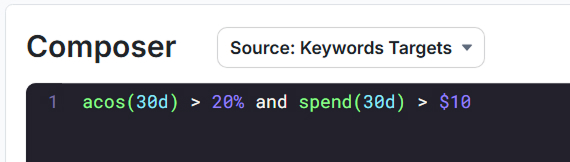
2. In the Editor, type:
// Filter for active keywords with clicks but no orders in the last 14 days
clicks(14d) > 5
and match type = "broad"
and orders(14d) = 0
and state = "effectively enabled"
3. Breakdown:
clicks(14d) > 5: This checks if the target has received more than 5 clicks in the last 14 days. Sinceclicksis a performance metric measured over-time, it's a a time-based property and requires a time-period in parentheses following the property.and orders(14d) = 0: This adds the condition that the target must have resulted in zero orders during that same 14-day period. This is also a time-based property.and match type = "broad": This adds the condition that the targets must be a broad-match target. Sincematch typeisn't measured over time and only looks at the current attributes of a property, it's a static property and doesn't require a time-period.and state = "effectively enabled": This ensures we only look at targets that are currently enabled, and the ad group and campaign they're in are also enabled. This is also a static property.- This whole expression is the Formula Expression that filters the Targeting dataset.
Validating Your Syntax
- Formula is valid: Looks good!
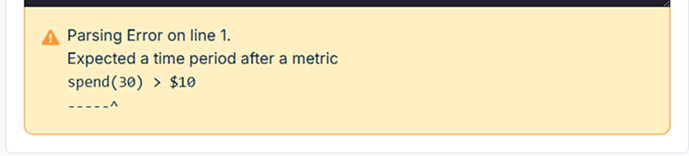
- Parsing Error / Other Errors: Check for typos (like c1icks instead of
clicks), mismatched parentheses(), missing semicolons;afterletstatements, using incorrect operators for the data type, or forgetting time periods on time-based properties. Refer to the Syntax Reference and Error Handling.

Saving and Next Steps
Once valid:
- Preview the Segment results by refreshing the filtered results and clicking the drop down.
- Configure the Workflow by selecting an action and schedule.
- Enable the Segment using the 'Enabled' toggle in the toolbar, allowing the Segment to run using your selected schedule and actions.
- Save the Segment. Remember, defining an Action/Schedule is currently required. See Workflows & Actions.
Further Learning: